Mode - Thrower
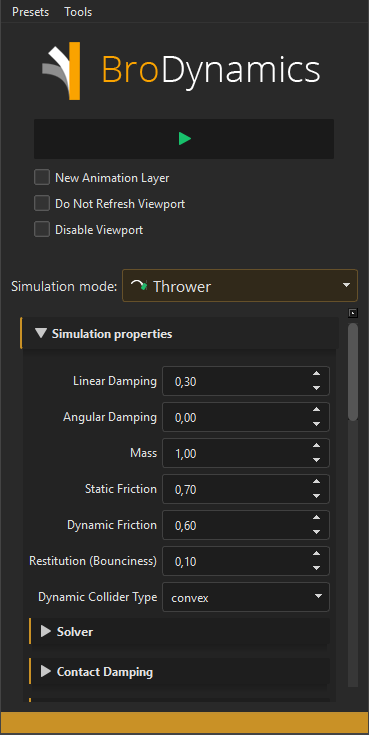
Allows you to quickly simulate physically accurate throwing, dropping and bouncing of any prop object. It uses BroDynamics' internal physics engine, which ensures that collisions are stable and controllable.
This simulation mode is ideal for props and environment objects that need believable ballistic motion or throwing\dropping props on the ground:
- Throwing or tossing objects from characters' hands
- Dropping props onto floors, tables, shelves or piles of other objects
- Letting clutter settle naturally after a push or impact

How it works
- Dynamic bodies are created for each selected object based on its mesh (or a linked collider mesh).
- Initial velocity is taken from animation between the first two frames of the current time range.
- BroDynamcis simulates gravity, collisions and damping over the chosen frame range.
- Final simulated transforms are baked back onto the original objects.
To use it:
- 1. Animate or position your objects, adjust the time range to where you want the simulation to start from.
- 2. Optionally, set up environment colliders (floors, walls, obstacles) and add them in the
Colliderslist. - 3. Tune the simulation properties, then press
Run.
Objects and Colliders
Dynamic Objects
Select any transforms that have a mesh under them, or that are linked to a collider mesh via Link Collider Shape.
The Thrower mode automatically:
- Builds a dynamic collider for each selected object
- Computes mass, damping and drag based on the properties below
- Assigns each dynamic body to collision layer 1 so they collide with each other and with environment colliders
If a selected object has no usable mesh or linked collider, the mode aborts and warns which objects are missing colliders.
Environment Colliders
Use the Colliders object list to add static meshes to the environment.
These meshes are converted to static rigid bodies and used as obstacles for dynamic objects. They share friction and restitution values with dynamic bodies for consistent behavior.
To speed things up you can create low poly poly meshes to use as colliders. These can be skinned, deformed or shrinkWrapped to the original mesh if needed.
You can use 3 types of static colliders:
-
Trimesh - this mode is the default, and uses all triangles from the provided mesh for collision detection, with full support of indentations\convex shapes and even holes. However it's more expensive than Convex to calculate, and it's performance heavily depends on how many triangles are in the mesh. Use it with meshes with concavities (like stairs) or holes (like a donut shape). It is recommended to use lower poly versions of existing meshes to be used as colliders if you need to speed up the simulation.
-
Convex - this mode uses only convex shapes for collision detection. This means that it can't handle concavities or holes, but it's much faster than Trimesh mode. Use this mode with simple convex objects.
-
Voxbox - this mode creates a grid of box colliders, it's like voxelizing the mesh (like minecraft world). It's slower than Trimesh or Convex for low and mid poly objects, but it's performance scales better with the mesh density. Use this mode when you need to simulate collisions with high detail meshes. It supports concave meshes just like Trimesh. On lower quality settings it can result in jagged edges on collision surface.
Voxbox is the only mode that has some settings:
- Grid - controls voxel resolution, i.e. how many cells the mesh’s bounding box is divided into per axis during voxelization. Higher values = finer detail.
- Max boxes - Maximum amount of voxels to use in collider.
Each collider shape has a Deformable checkbox. This checkbox enables or disables support for deformable colliders. When enabled, the shape of the object is queried from Maya every frame, and the collider shape is updated. Disable if your colliders are not moving and not deforming to speed up the simulation.
Collider Tools
- Link Collider Shape – Select control object, then collider mesh, to link them. The collider mesh will be used for that control.
- Unlink Collider Shape – Remove an existing link between a control and its collider mesh.
- Generate Collider – Select a source mesh (or control + mesh). Builds a convex-hull collider mesh you can later link to a control. The Optimize checkbox will make an optimized lower-polygon version of the collider, it is faster to generate and faster to simulate. You can also control the polygon count cap for the final collider mesh.
Simulation properties
Linear Damping
Velocity damping for rigid bodies. Higher values make objects lose linear speed faster.
Use it to make throws settle earlier or feel heavier. Too high values can make motion feel underwater.
Angular Damping
Rotational damping for rigid bodies. Controls how quickly spin slows down.
Increase if objects keep spinning too long after impact.
Mass
Mass of each dynamic body.
Affects momentum and how strongly collisions influence the object. Heavier objects are harder to stop and push lighter ones more.
Static Friction
How much the object resists starting to slide when at rest on a surface.
Higher values make objects stick more and require more force or impact to start sliding.
Dynamic Friction
How much the object resists sliding while already moving.
Higher values make sliding slow down faster and reduce how far objects skid.
Restitution (Bounciness)
How bouncy impacts are.
0– no bounce, objects just thud and stay1– perfectly elastic, maximum bounce
Typical use is a small value like 0.1–0.3 for believable props.
Dynamic Collider Type
Collision shape used for dynamic objects:
- Convex – Shrink-wrapped convex hull around the object. Very stable and fast. Recommended default.
- Trimesh – Uses the full render mesh. More accurate for complex shapes but slower, especially on dense meshes.
- VoxBox – Voxelized approximation using many box colliders. Can be useful for very dense meshes where Trimesh is expensive.
If you see jitter or instability, try switching from Trimesh/VoxBox to Convex.
Sleep Linear Threshold
If linear speed stays below this value for the Sleep Time, the body is put to sleep (deactivated).
Helps stop tiny vibrations when objects are almost at rest.
Sleep Angular Threshold
If angular (rotational) speed stays below this value for the Sleep Time, the body is put to sleep.
Use together with Sleep Linear Threshold to control when objects completely settle.
Sleep Time (s)
Time window (in seconds) during which both linear and angular speeds must stay below the thresholds before a body is deactivated.
Longer times make objects settle more slowly but avoid premature sleeping.
World Compliance
Global XPBD compliance (softness) for the whole world.
0.0– hard, classic rigid contacts- Small >0 – slight softness, can reduce jitter in difficult stacks or crowded scenes
- Higher – very soft, for more rubbery/artistic behavior
Use sparingly; start from 0.0 and increase only if you hit stability issues.
Substeps
Number of physics substeps per frame.
- Lower values (2–4) – faster, but collisions may miss or feel less stable
- Default
8– good balance of quality and speed - Higher values – more reliable collisions for fast-moving objects or very small details
Solver Iterations
Number of positional solver iterations per substep.
Higher values improve the quality of constraints and contacts, especially in stacks of many objects. 24 is a good default.
Collision Pre-Iterations
Extra collision-only iterations run before the main solver iterations.
Can improve collision quality and reduce tunneling in difficult setups. Start from the default and increase only when needed.
Contact Damping (Linear)
Artistic control over how much linear velocity is removed on contact.
Acts on top of friction. Increase to:
- Make objects settle faster
- Make them feel like they hit sand or mud
- Reduce bounciness without lowering restitution too much
0 has no effect, 1 removes all linear motion at each contact.
Contact Damping (Angular)
Same as Contact Damping (Linear), but for rotational velocity.
Increase to reduce post-impact spinning or to make objects stop rotating faster after they hit the ground.
Contact Damping (Linear Velocity Threshold)
Minimum linear speed required for contact damping to apply.
Use it to only damp fast impacts while leaving slow drifts mostly unaffected.
Contact Damping (Angular Velocity Threshold)
Minimum angular speed required for angular contact damping to apply.
Use it to only damp fast spins, keeping slow gentle rotations more natural.
Air Density
Controls global air drag.
0– drag disabled- Around
1.0– similar to real-world air
Higher values make objects slow down faster while flying, useful for light props, paper, or exaggerated resistance.
Gravity (cm/s²)
World gravity strength, in centimeters per second squared.
- Default
98.1≈ Earth gravity (9.81 m/s²) in Maya centimeters - Lower values feel like low gravity or underwater
- Higher values feel heavier and make objects fall faster
Additional options
Cycle Iterations
Number of times to repeat the full simulation over the same frame range.
Useful when you need to refine contact behavior across the start/end of the range or to fix initial overlaps. 1 is usually enough.
Transfer Position / Transfer Rotation
- Transfer Position – When enabled, simulated translations are applied and keyed on the objects.
- Transfer Rotation – When enabled, simulated rotations are applied and keyed.
Disable one of them if you only want to drive position or only rotation from the simulation.